Duplicate Work Order Detection
The Duplicate Work Order Detection feature in Asset Essentials helps technicians and administrators quickly identify, review, and resolve potential duplicate work orders. This ensures a clean, efficient work queue and prevents repeated work on the same issue.
Accessing Duplicate Work Orders
-
Login to Asset Essentials.
-
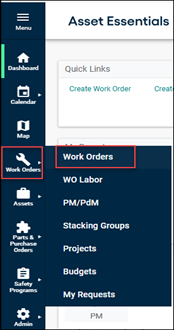
Click Work Orders in the main navigation.
-
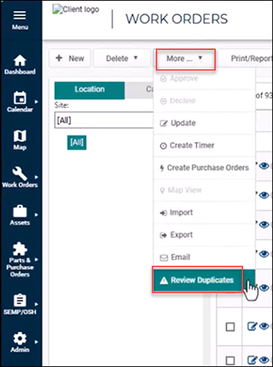
On the WORD ORDERS screen, click More (▾) drop-down menu and then select Review Duplicates.
-
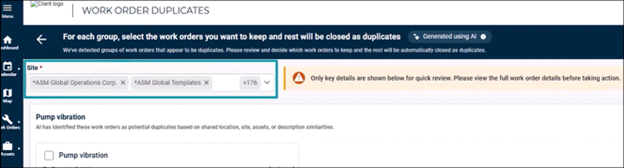
At the top of the WORK ORDER DUPLICATES page:
-
Select one or more sites you want to review.
-
You will only see duplicate groups for sites where you have edit access.
-
-
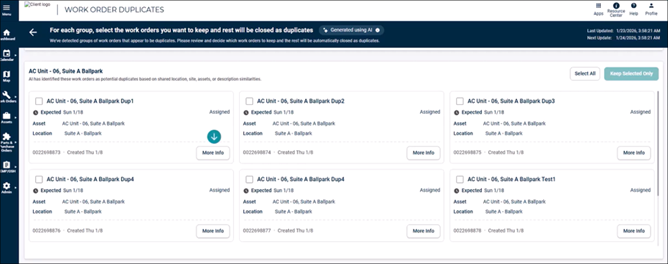
Once sites are selected, duplicate groups appear as cards on the screen.
Detecting Duplicate Work Orders
The system identifies possible duplicates based on:
-
The oldest in-progress work order for a specific site.
-
Similarities in location, description, or other key details.
An AI-generated summary appears below the site filter to highlight similarities between work orders.
This helps you quickly spot why the system grouped them together.
Detection Timing: Duplicate detection refreshes daily. Any new work orders created in the last 24 hours are automatically included.
Reviewing Work Order Details
To evaluate whether a work order is a duplicate:
-
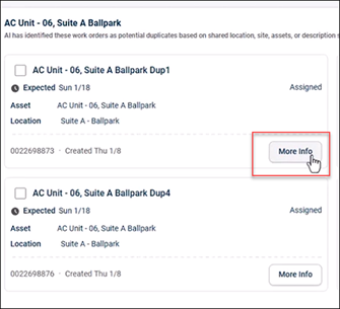
Click More Info on the bottom-right corner of any work order card.
-
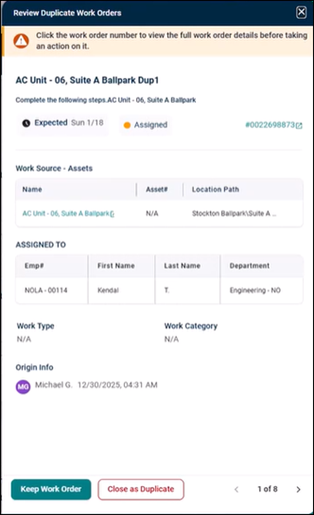
A side panel pops-up on the right of the screen, displaying:
-
Status
-
Asset details (if any)
-
Assignees
-
Work type
-
Links to navigate directly to:
-
The work order
-
Associated asset
-
Site or location
-
-
Use this information to determine whether the work order is truly a duplicate or should remain in the queue.
Resolving Work Orders
You can resolve work orders individually through the side panel or in bulk from the card view.
Resolving Work Orders from the Side Panel
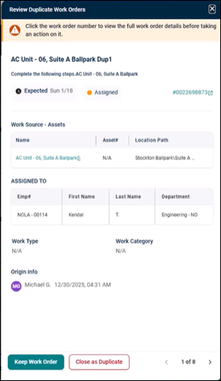
While viewing a work order’s details, choose one option:
A. Keep Work Order
Select this when:
-
The work order is valid.
-
The tasks described are unique.
-
It should remain active in the queue.
B. Close as Duplicate
Select this when:
-
The work order repeats an existing task.
-
The activity is already covered in another work order.
-
You may optionally add a reason/comment, which is stored in the work order’s comment history for auditing.
Resolving Multiple Work Orders (Bulk Actions)
-
Select the check-boxes on the work order cards you want to act on.
-
Choose one of the following:
A. Keep Selected Only
-
Click Keep Selected Only.
-
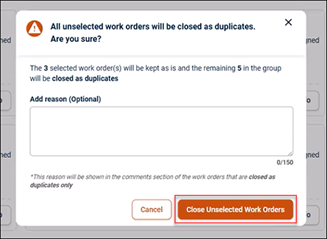
A pop up appears to add an optional comment. This comment will appear in the work order’s comment history for audit clarity.
-
Click Close Unselected Work Orders to remove the remaining cards in the group.
B. When No Duplicates Exist
If none of the work orders in the group are duplicates:
-
Click Select All.
-
Click Keep Selected Only. A confirmation screen pops-up.
-
Click Keep Work Orders.
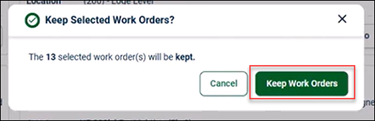
This keeps every work order intact.
Important Behavior to Remember
-
Group Actions Affect the Entire Group: Actions performed on the Duplicate Review page apply to the entire group you are viewing.
-
Single Work Order Actions: If you open a work order from the Site Info tab and act on it individually:
-
Only that single work order is affected.
-
Other work orders in the group remain unchanged.
-
Recommendation
To maintain an accurate queue:
-
Review duplicates daily.
-
Use clear comments when closing duplicates.
-
Verify sites, assets, locations, and descriptions before closing.
-
Ensure you do not close work orders that contain unique tasks.
